2016年3月21日星期一

HP Chromebook 14-X003TU 11.1V 2810mAh laptop battery 9 months warranty covered


HP Chromebook 14-X003TU 11.1V 2810mAh laptop battery is one of the best selling in www.storebattery.co.nz, and there are huge  inquiry about it. Being duriable quality and fantastic perforance, you may find it having promising market.

Each battery is tested to make sure you will get a satisfying battery. Quality are sured and you got 9 months free warranty.

You may find its detail information below:    
                                         
Voltage: 11.1V
Capacity: 2810mAh (32Wh)
Battery cells: 3-cell
Chemical: Li-ion                     
Battery Color: Black
Condition: new original battery
Warranty: 9 months
Status: In stock
Shipping:8-18 days worldwide
Product ID: 1004013-195628-1

Compatible with following hp laptop model:
CHROMEBOOK 14-X010WM, CHROMEBOOK 14-X040NR, CHROMEBOOK 14-X010NR, Chromebook 14 G3,CHROMEBOOK 14-X013DX, CHROMEBOOK 14-X021DS

Also Compatible with following hp battery model:
752235-005 751895-1C1 774159-001
HSTNN-IB6C HSTNN-IB6P BO03XL
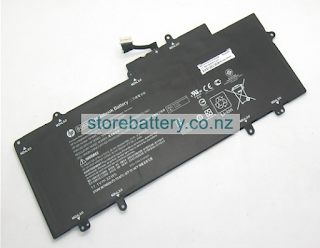

HP Chromebook 14-X003TU 11.1V 2810mAh laptop battery 


2016年3月18日星期五

HP Pavilion 10 TouchSmart 10-e004au battery charging must-know


HP Pavilion 10 TouchSmart 10-e004au 10.8V 2422mAh laptop battery

HP Pavilion 10 TouchSmart 10-e004au battery charges whenever the computer is plugged into external power through an AC adapter, or an optional power adapter.
The battery charges well whether the computer is off or in use, but it charges faster when the computer is off.
Charging may takes longer if a battery is new, has been unused for 2 weeks or more, or is much warmer or cooler than room temperature.
To prolong battery life and optimize the accuracy of battery charge displays, follow the recommendations below:
● If you are charging a new battery, charge it fully before turning on the computer.
● Charge the battery until the battery light turns white.
NOTE: If the laptop is on while the battery is charging, the battery meter in the notification area may show 100 percent charge before the battery is fully charged.
● Allow the battery to discharge below 5 percent of a full charge through normal use before charging it.
● If the battery has been unused for one month or more, please calibrate the battery instead of simply charging it.


2016年3月17日星期四

Toshiba Satellite C50 battery doesn't charge when the AC adaptor is attached? Try these:


TOSHIBA SATELLITE C50-ABT2N11 10.8V 4200mAh laptop battery 
Toshiba Satellite C50 battery is completely discharged, it will not begin charging immediately, in these instances you should wait a few minutes before trying again. Ifthe battery still does not charge, you should check that the power outlet the AC adapter is connected to its supplying power - this can be tested by plugging another appliance into it.
Check whether the battery is hot or cold to thetouch - if so, it will not charge properly and should be allowed to reach room temperature before youtry again.
Unplug the AC adapter and remove the battery to make sure its connecting terminals are clean - if necessary wipe them with a soft dry cloth lightly dipped in alcohol.
Connect the AC adapter and replace the battery,taking care to ensure that it is securely seated inthe computer.
Check the DC IN/ Battery indicator - if it does notglow, allow the computer to charge the battery forat least twenty minutes. If the DC IN/ Batteryindicator starts to glow after this period, allow the battery to continue to charge for at least another twenty minutes before turning on the computer.However, if the indicator still does not glow, thebattery may be at the end of its operating life andshould be replaced.


2016年3月14日星期一

BATTERY CHARGER OPERATION FOR FUJITSU-SIEMENS CEX-XTXXXSS6


FUJITSU-SIEMENS CEX-XTXXXSS6 11.1V 5200mAh laptop battery


The Power Indicator LED is on when the battery charger is connected to a plugged-in AC adapter. The two Charge Indicator LEDs show the charging status of the battery connected to the charger or the condition of the charger itself.

Charge Indicator
Flashes orange      Standing by for charging
Steady orange      Charging
Steady green       Charging is complete
Steady red        Battery failure
Flashing red       Charger failure
No light          Battery not connected

If the charger detects that something is wrong with the battery, the Charging Indi-cator LED will turn a steady red. If this hap-pens, immediately remove the battery fromthe charger.

If the battery charger detects a failure in itscharging circuit, the Charging Indicator LED will blink red. If this happens, immediatelydisconnect the AC adapter and remove thebattery from the charger.


2016年3月9日星期三

Setting Up Your SAMSUNG Galaxy Tab

SAMSUNG Galaxy Tab 10.1 3.7V 7000mAh laptop battery 
When you first turn on your device, you are asked to set up a few things.A Welcome screen displays. Scroll through the list and
1.touch the language you want your device to use, such as,English (United States). Touch Start.
2.On the Wi-Fi setup screen, chose one of the following 2.options:
• Touch Refresh list to make sure you have an accurate list of Wi-Finetworks.
• Touch Add network to enter a Network SSID that is not listed.
• Touch one of the Wi-Fi networks in the list, enter the password, and touch Connect.
• Touch Skip to perform this task later.
3.and enable either or both of the Google location services.
4.On the Set date and time screen, tap repeatedly above or below the Date (month, day, year) and Time (hour, minute,.and AM/PM) fields to set the correct date and time. Touch Next
5.Your new device uses your Google account to fully utilize its Android features, including Gmail, Maps, Navigation,Google Talk, and the Android Market.
The Sign in with your Google Account screen, allows you tocreate a new Google account or sign in, if you already havea Google account.
• Touch Next and then touch Create account or enter the email
or –• Touch Skip to perform this task later.

2016年3月7日星期一

Have a overall inspection on your dell battery before buying a new battery


DELL Inspiron 15 7537 14.8V 3950mAh laptop battery

Please follow the steps below to calibrate the laptop battery and to make sure whether to buy a new one. 

First: Charging the battery 
Fully charge the battery when the laptop is in use. 
To charge the battery: 
1. Insert the battery into the laptop. 
2. Connect your notebook to external power through an AC adapter. (The battery light comes on) 
The laptop battery light turns off when the battery is fully charged. 
Discharging the battery disable hibernation fully discharge the battery to temporarily disable hibernation. 
To disable hibernation: * Select the Power Meter icon in the taskbar, or access to Power Options> Hibernate and uncheck Enable hibernate support check. 

Second: The battery discharge 
After the battery light turns off, indicating that the battery pack is fully charged, start the performance of the laptop battery. 

Third: The battery recharge 
1. Connect your notebook to external power and keep the laptop connected until the battery is fully charged and the light goes out. You can use the laptop while the battery is charging, but the laptop battery pack charges faster if the PC is off. 
2. Select the Power Meter icon in the toolbar or select Start> Control Panel> Performance and Maintenance> Power Options Power Schemes. 
3. Rewrite the 3 position which he wrote for the 3 options in the coat, in the column and the 3 options in the column that runs on batteries. 
4. Select the OK button. 

2016年3月4日星期五

Downloading a HP Pavilion 13 BIOS update caution


HP Pavilion 13-a000ns 11.4V 3720mAh laptop battery
To reduce the risk of damage to the computer or an unsuccessful installation, download and install a BIOS update only when the computer is connected to reliable external power using the AC adapter. Do not download or install a BIOS update while the computer is running on battery power,docked in an optional docking device, or connected to an optional power source. During the download and installation, follow these instructions:
Do not disconnect power from the computer by unplugging the power cord from the AC outlet.
Do not shut down the computer or initiate Sleep.
Do not insert, remove, connect, or disconnect any device, cable, or cord.